
Project Overview ☁️
This project builds a serverless data pipeline onAWS to ingest, clean, transform, and visualize CSV files. When a CSV file is uploaded to the raw data bucket csv-raw-data, an AWS Lambda function is invoked to perform lightweight preprocessing (for example, removing rows with missing values) and then writes the cleaned file to the processed data bucket csv-processed-data.
Next, AWS Glue performs scalable ETL and converts the processed dataset into an analytics-friendly format (Parquet) stored in the final bucket csv-final-data. The metadata for the data (databases/tables/schema) is stored in the AWS Glue Data Catalog, which can be populated automatically using a Glue Crawler.
Finally, Amazon QuickSight connects to Amazon Athena (which reads the Parquet data in S3 using the Glue Data Catalog schema) to build dashboards and reports.
Setup and Configuration
Create S3 Buckets
Create three buckets in the same AWS Region (not “area”):
csv-raw-datafor raw uploadscsv-processed-datafor cleaned outputscsv-final-datafor final transformed outputs
Region reduces latency and avoids cross-region surprises.
Create an IAM Role for Lambda
Create an IAM role for your Lambda function so it can read from csv-raw-data and write to csv-processed-data.
For a quick demo, people often attach broad managed policies, but it’s better to say this clearly: broad policies are convenient and insecure; least-privilege is the real standard. for demo porpose I will attache these polices.
- AmazonS3FullAccess (read and write S3 buckets).
- AWSGlueServiceRole (for glueing operations).
LambdaS3GlueRole
Set up Amazon QuickSight
In the AWS Console, search for QuickSight and open the service. If you don’t have an account yet, click Sign up for QuickSight. Add your email. For the Authentication Method, check Password-based or Single-Sign On (Recommended). Choose the Same region as your buckets. and create your account. The Amazon QuickSight setup process has been simplified significantly. You can check that the required IAM role has already been added to your roles.
- Click on your user icon at the top-right corner of the QuickSight console
- Select "Manage QuickSight" from the dropdown menu
- In the Manage QuickSight page, click on "permissions" in the left navigation pane click on AWS resources. check S3 and select the S3 buckets you just created.
Data Ingestion and Preprocessing
Create a Lambda Function and S3 Trigger
We will create a python lambda function revoked Whenever a file is uploaded to a specific S3 bucket (csv-raw-data). Let us name it CSVPreprocessorFunction
This Lambda is triggered when a CSV file is uploaded to S3. It reads the file, removes rows that contain missing values, and then saves a cleaned version of the CSV to a different S3 path (replacing raw/ with processed/). Do not forget to attach Lambda-S3-Glue that created in the past section.
Lambda Code
Below is a cleaned-up version of your function with small but important fixes: it uses an environment variable for the destination bucket, it handles keys more safely, and it preserves the “same key structure, different bucket” idea.
import os
import boto3
import csv
import io

s3 = boto3.client("s3")

PROCESSED_BUCKET = os.environ["PROCESSED_BUCKET"]  # e.g., csv-processed-data

def lambda_handler(event, context):
    record = event["Records"][0]
    source_bucket = record["s3"]["bucket"]["name"]
    source_key = record["s3"]["object"]["key"]

    # Only process objects under raw/
    if not source_key.startswith("raw/"):
        return {"status": "skipped", "reason": "Object not under raw/"}

    try:
        response = s3.get_object(Bucket=source_bucket, Key=source_key)
        csv_content = response["Body"].read().decode("utf-8")

        reader = csv.reader(io.StringIO(csv_content))
        header = next(reader)  # will raise StopIteration if the file is empty

        processed_rows = []
        for row in reader:
            # Example preprocessing: drop rows with any empty cell
            if all(cell.strip() for cell in row):
                processed_rows.append(row)

        output_csv = io.StringIO()
        writer = csv.writer(output_csv)
        writer.writerow(header)
        writer.writerows(processed_rows)

        # Keep the same filename, switch raw/ -> processed/
        processed_key = source_key.replace("raw/", "processed/", 1)

        s3.put_object(
            Bucket=PROCESSED_BUCKET,
            Key=processed_key,
            Body=output_csv.getvalue().encode("utf-8"),
            ContentType="text/csv",
        )

        return {"status": "ok", "processed_key": processed_key}

    except StopIteration:
        return {"status": "error", "reason": "CSV file is empty (no header row)"}
    except Exception as e:
        raise
Test the Ingestion and Preprocessing
Upload a sample file likeweather-data.csv to s3://csv-raw-data/raw/. The upload should invoke CSVPreprocessorFunction, and you should see the output in s3://csv-processed-data/processed/ with the same filename.
Go to the S3 Console and navigate to your s3://csv-raw-data/-data bucket. Create a folder named raw and upload a sample CSV file (weather-data.csv) to this folder.
You can download the weather-data.csv from here: LINK
Now since you added a new csv, this will trigger the Lambda function and store the processed CSV in the processed bucket. Navigate to your S3://csv-processed-data/processed/ bucket and verify that the processed CSV file is present in the correct folder.
Note: You can remove cells for various rows and upload the file to verify that the Lambda function is operating. A row with an empty cell will not be included in the processed CSV file.
Data Transformation with AWS Glue
What is AWS Glue?
What is AWS Glue? AWS Glue is a fully managed ETL (Extract, Transform, Load) service that helps automate data preparation and transformation.
What is AWS Glue Data Catalog? AWS Glue Data Catalog is a centralized metadata repository that stores information about datasets, making them easily searchable and accessible for analytics.
How is preprocessing through Lambda and Glue ETL different? Lambda is ideal for lightweight, real-time preprocessing of small files, while Glue ETL is better suited for large-scale, complex transformations on big data with built-in schema discovery and job orchestration. In this project, we will use both of them.
Set Up a Glue Data Catalog Database and Crawler
In this section, we’ll create a Glue Data Catalog database, then create a Glue Crawler to discover the schema of the preprocessed files in S3 and generate tables in the catalog.
-
Create a database: go to
Data Catalog→Databases→Add database. -
Create a crawler: choose
S3as the data source and set the path tos3://csv-processed-data/processed/. -
Configure the crawler’s
IAM role(select an existing role or create a new one) so the crawler can read fromS3and write to theGlue Data Catalog. -
Run the crawler to create/update the tables in the selected database.
Create and Configure an AWS Glue Job Using Visual ETL
Go to AWS Glue Studio and create a new Visual ETL job (blank canvas).
In the visual canvas, choose Add node and select Data source. Choose AWS Glue Data Catalog as the source, then select the database csv_data_pipeline_catalog and the table csv_processed_data created by your Crawler.
Next, add a transformation node. Click the + after the source node and choose Change schema. Use it to drop the icon column (and optionally rename or cast types if needed). This transform is designed for selecting/dropping fields and remapping schema.
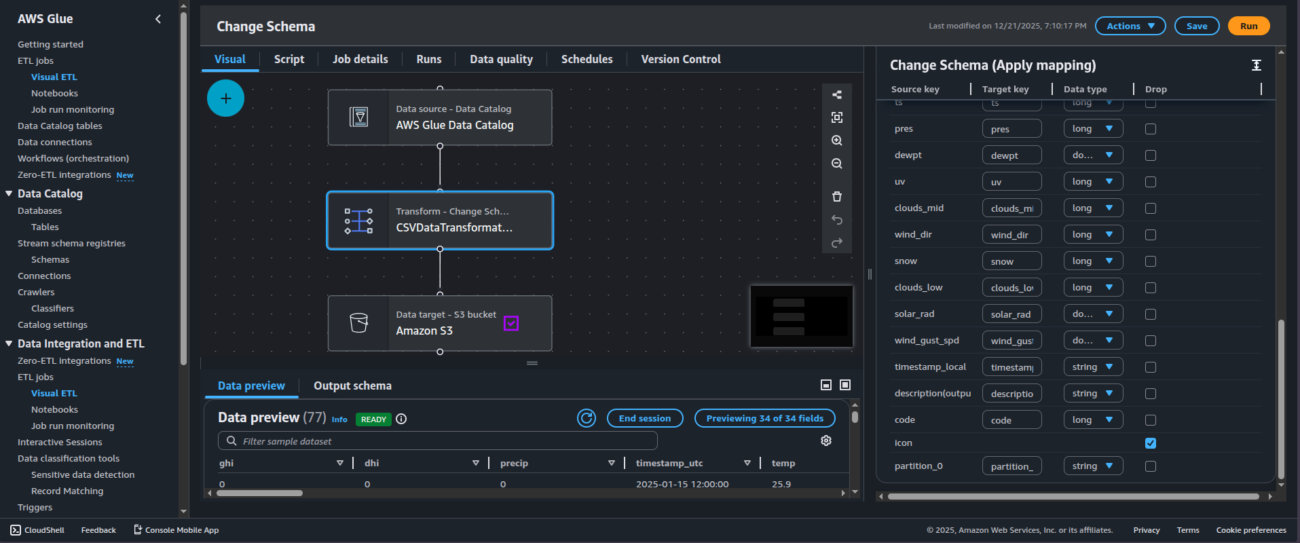
Now define the target. Click the + after the transformation node and choose Data target, then select Amazon S3. Set the target path to something like s3://csv-final-data/ Choose Parquet as the output format. At this point, the output is a Parquet dataset written to S3 (typically multiple objects under the prefix), not a “transformed CSV file.
Finally, configure the job properties from the Job details panel: set the job name to CSVDataTransformation and select an IAM role for the job. The job assumes this role when it runs, so the role must allow reading from the source S3 location, writing to the target S3 location, and accessing required AWS Glue
Run the ETL job, then verify the output objects in the target S3 prefix under csv-final-data.
Data Visualization with Amazon QuickSight
We’ve successfully automated ingestion and transformation of CSV data using Amazon S3, AWS Lambda, and AWS Glue. The final step is to visualize the curated dataset in Amazon QuickSight to turn the transformed data into actionable insights.
Connect QuickSight to the final dataset via Athena and the Glue Data Catalog
Because the final output is stored in Amazon S3 as Parquet, the most reliable and common approach is to connect Amazon QuickSight to Amazon Athena (not directly to S3). Athena reads the Parquet data in S3 using the schema stored in the AWS Glue Data Catalog, and exposes it as queryable tables that QuickSight can import or query.
In the QuickSight console, go to Datasets and choose New dataset. Select Athena as the data source, then choose the database and table created in the Glue Data Catalog.
Build and publish a dashboard
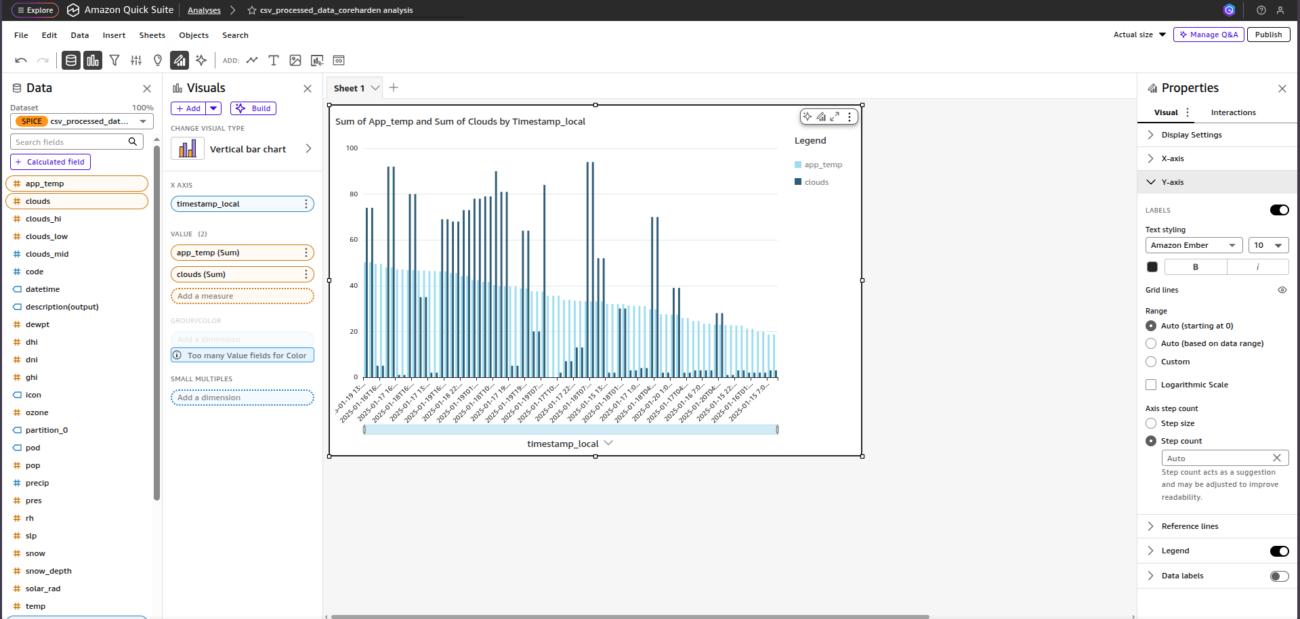
When you’re ready, publish the dashboard and share it with other QuickSight users or groups in your account. Publishing is separate from sharing—after publishing, you can grant access to specific users/groups (or your whole account, if appropriate).